

How to Install Claude on a Mac: Plan, Setup and Your First Chat
· 11 min read
By O-Side Media
Part 1 of Getting Started With Claude on a Mac. Part 2 takes Claude Code into the terminal.
To install Claude on Mac, download the free desktop app from Anthropic’s site and drag it into Applications. Any Mac running macOS 13 Ventura or later will do, Intel or Apple silicon. Sign in and you can start talking to Claude straight away. Free already covers chat, web search, memory and connected apps, while Pro, at $20 a month billed monthly in the US, adds Cowork for handing off whole tasks plus Claude Code.
If you’re starting out, try Free first. Get to know the layout of the app and have a few chats within its free boundaries.
The steps below follow the order you’ll do them in, and each screenshot shows what your screen should look like once the step above it is done.
Pick a plan: Claude Free vs Pro
Claude is one login you can open almost anywhere: claude.ai in a browser, the desktop app, the phone apps, and Claude Code in a terminal. Your conversations, projects, memory and preferences come along wherever you sign in.
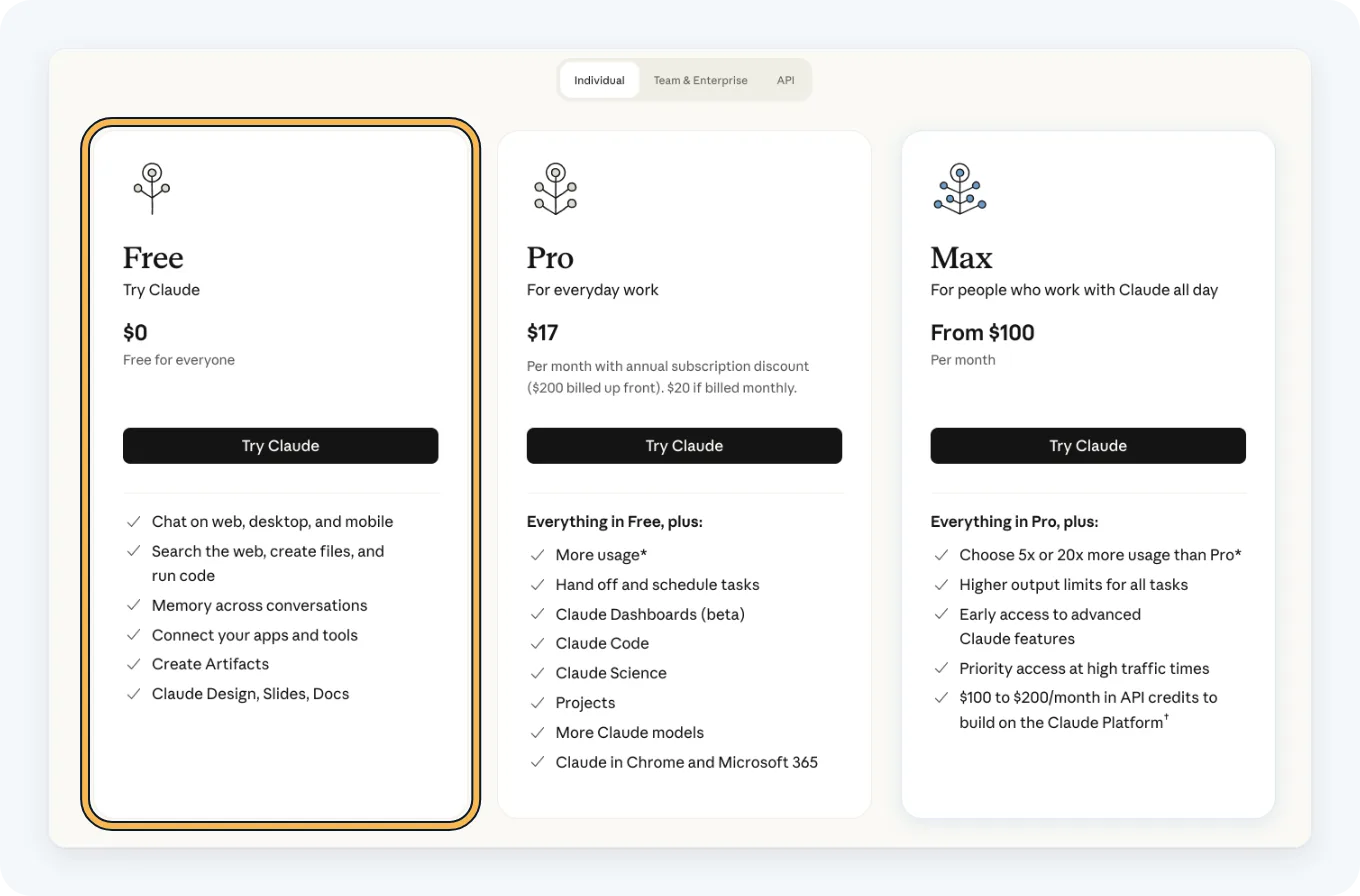
Your plan decides what that login can do. Here’s how Anthropic’s pricing page lays out the three personal plans:
| Plan | Price (US) | What you get |
|---|---|---|
| Free | $0 | Chat on web, desktop and mobile, web search, creating files and running code, memory across conversations, connecting your apps and tools, Artifacts, plus Claude Design, Slides and Docs |
| Pro | $20 a month, or $17 a month on a yearly plan ($200 up front) | Everything in Free, plus more usage, handing off and scheduling tasks, Claude Code, Projects, more Claude models, and Claude in Chrome |
| Max | From $100 a month | Everything in Pro, with a choice of 5x or 20x Pro’s usage |
Listed prices don’t include tax, and they change by region.
You’ll need Pro the day you want Claude to take a whole task off your hands, like sorting a folder of files, or to write code for you.
How to install Claude on Mac
Before you install Claude on Mac, check one thing: Anthropic lists macOS 13 as the minimum. You don’t have to pick a chip, because the download is a Universal build.
- Open claude.com/download in your browser.
- In the Desktop card, find macOS and click Download.
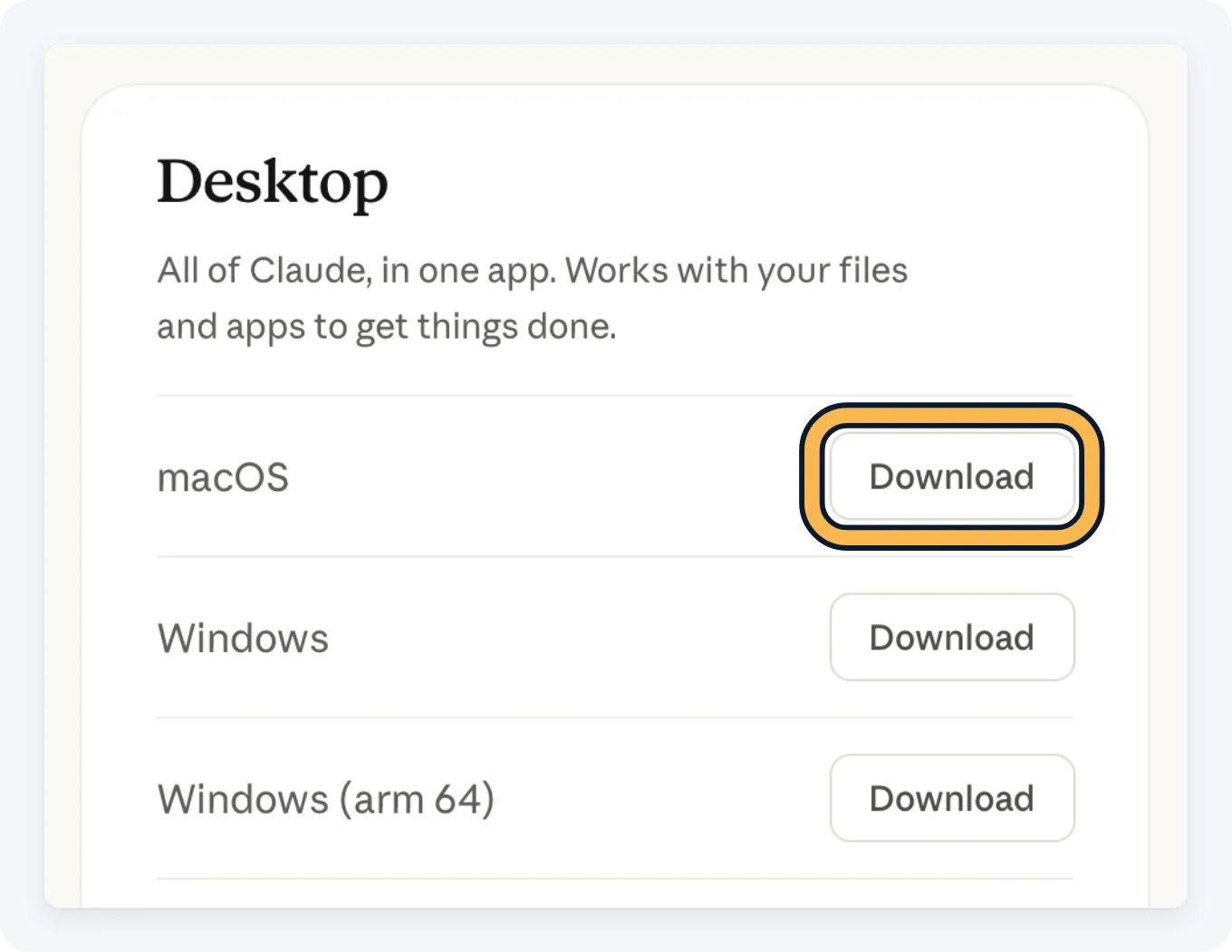
- If Safari asks whether you want to allow downloads on “claude.com”, click Allow.
- The file goes to your Downloads folder. Double-click the Claude .dmg to open it.
- In the window that opens, drag the Claude icon onto the Applications folder.
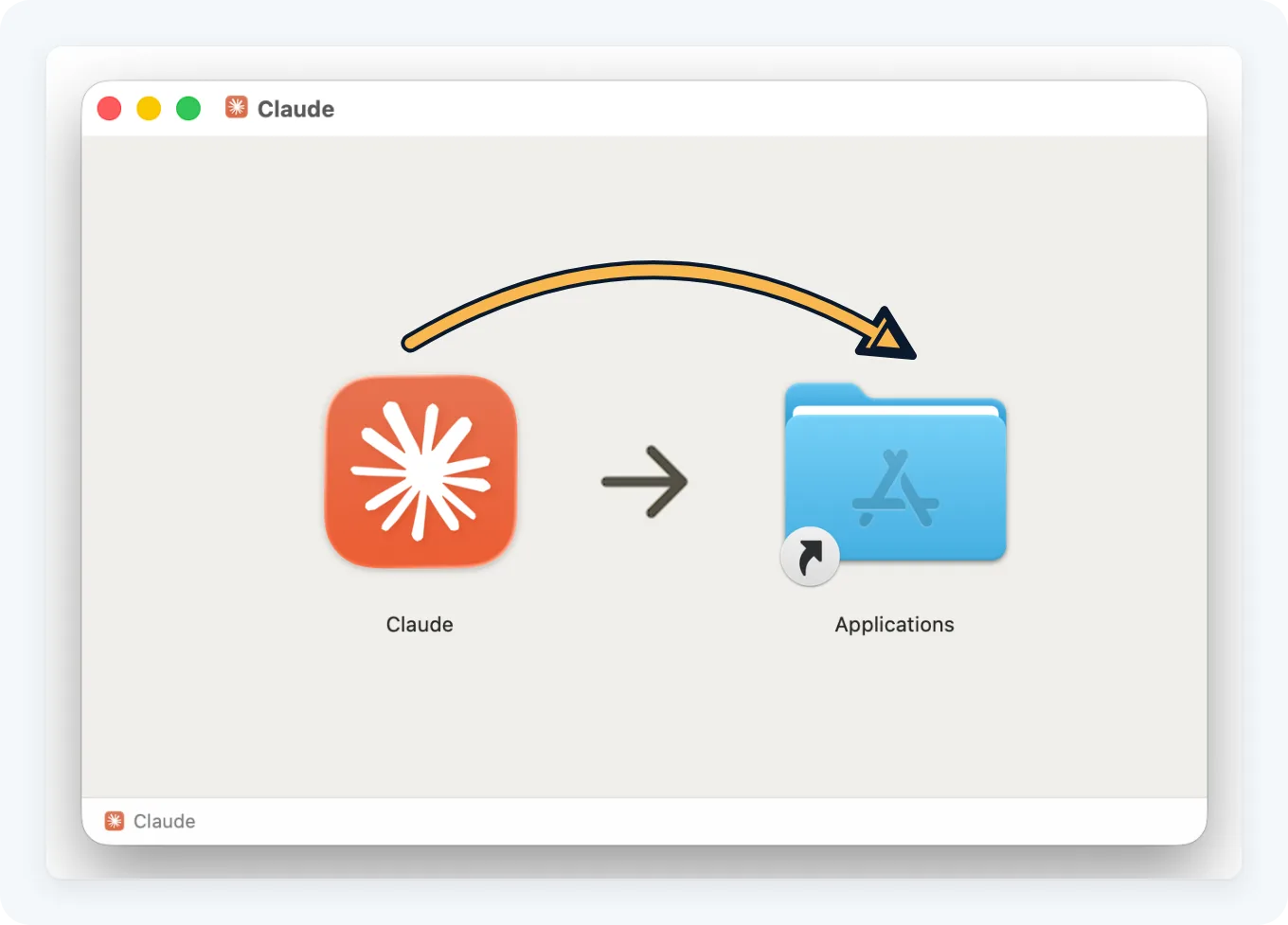
- Open Claude from Applications.
Sign in to Claude
The first time Claude opens, it asks you to sign in with your Anthropic account. It’s the login you use on the web, so a conversation started in one place shows up in the other.
No account yet? Anyone in a supported location can sign up for Free at claude.ai with an email address, as long as they’re 18 or older.
Once you’re in, just get a feel for where the settings are. Don’t jump right into skills, plugins and connectors yet.
Have your first useful conversation
I think Claude is really good at writing just out of the box, and that makes writing a good starting point.
Treat your first message as a brief for a sharp colleague who’s new to your project. Anthropic’s own advice for bigger tasks asks for three parts, and they pay off on a short chat too:
- The result you want. A video description, say, or a caption for tomorrow’s upload.
- The shape it comes back in. Length and tone matter most on a writing job.
- What Claude should work from. Paste your notes or attach the file.
Here’s a brief you could paste in as-is, swapping in your own notes:
Here are my rough notes for a YouTube video about setting up a desk for filming. Write a video description from them: a two-line hook, then three short paragraphs, in a friendly, plain tone. Keep it under 150 words.

(paste your notes here)
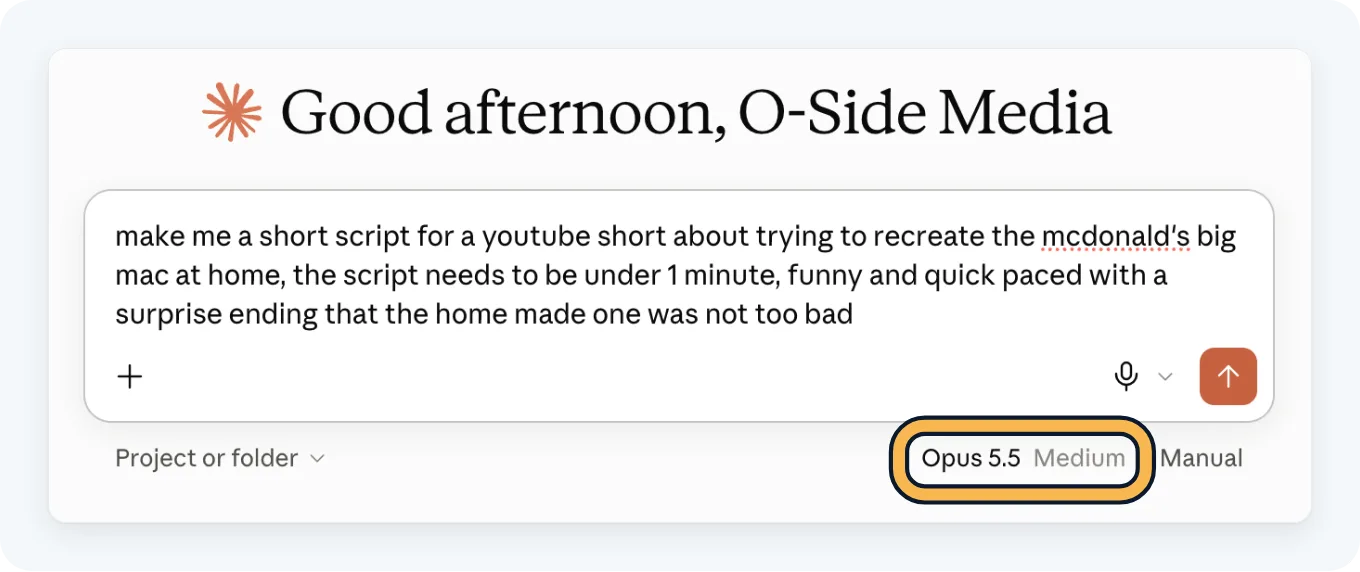
Before you send it, look just under the text field. The app shows the model you’re talking to there, and clicking its name opens the model selector. The + button at the lower left, or typing /, brings up more options.
If the answer misses, say what’s off in the same conversation. “Make the hook shorter” fixes one line. A brand-new request starts over from zero.
A real example: scripting a YouTube Short
Here’s what that back-and-forth looks like on a real job. I asked Claude for a YouTube Short script about recreating a McDonald’s Big Mac at home: under a minute, funny and quick, with a surprise ending where the homemade one turns out not too bad.
That request covered the result and the shape. There were no notes to paste, so the third part of the brief stayed empty.
The first reply was a titled script of about 55 seconds. Six timed beats ran from the hook to a taste-test twist, followed by an end card and two filming tips. The sauce got 10 seconds and a quick run of ingredients with no amounts. The script also named the middle bun Gary.
I told Claude that most people now know how to make Big Mac sauce, so the script should show it as a highlighted moment.
Claude rebuilt the sauce beat at 14 seconds. The music cuts out, seven ingredients drop into a bowl with their amounts on screen, and the beat ends on the text “Screenshot this”. To stay under a minute, it suggested trimming two earlier beats by about three seconds each, plus repeating the recipe in a pinned comment.
Next came a question about Gary. Claude conceded the joke was muddy: the closing line was meant to say the homemade burger won, but Gary was only the middle bun, so the payoff didn’t land. It offered two fixes, renaming the homemade burger Gary or cutting him entirely, and recommended the first.
I don’t think anyone would have got the Gary joke, and I still don’t get it, or how it even came up. It’s a good example of Claude making mistakes or adding things you don’t need, and customizing Claude is a topic for a future post.
I cut Gary and asked for a tighter script. It took a couple of tries to dial the script in and clear out odd bits like that.
The final version runs about 50 seconds. The middle bun keeps one baffled line, the sauce is now the longest beat at 15 seconds with the same seven amounts, and the ending pushes the real Big Mac out of frame with an apology to McDonald’s.
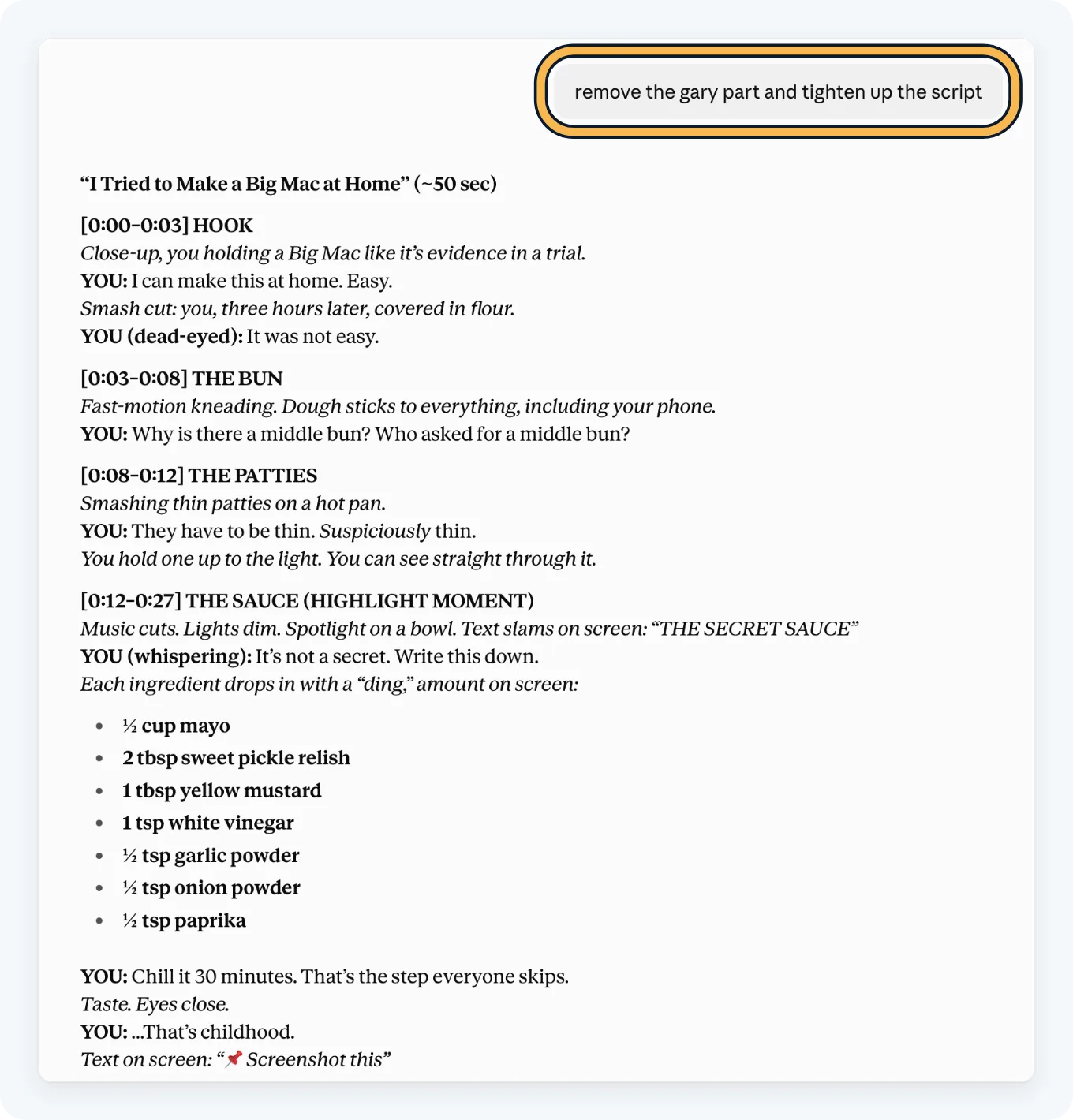
I’m on Max, and the model under the box read Opus 5.5 Medium. Free covers chat in the desktop app too, though Anthropic’s pricing page lists more Claude models as one of Pro’s extras.
About those sauce amounts: they’re Claude’s answer, and the note it showed while working said it was recreating a popular copycat recipe from memory.
Honestly, work it until you’re happy with the results. You may have to go back and tweak it a bit more once you start filming.
Coming over from another assistant? Old conversations can’t be imported. Free, Pro and Max accounts can import memory from another AI provider instead, so Claude starts with what the other assistant remembered about you.
Choose between the Mac app and the browser
Whatever works for you. I think the fact that it’s available on the web, the desktop, in your terminal or IDE, and as a mobile app is super flexible, because you can use it wherever and whenever you want.
Both reach one login. The Mac app adds a few things a browser tab can’t do:
| Feature | claude.ai in a browser | Claude desktop app |
|---|---|---|
| Chat with Claude | Yes | Yes |
| Lives in the Dock | No | Yes |
| Quick entry from anywhere on your Mac | No | Yes |
| Desktop extensions for local apps and files | No | Yes, under Settings > Extensions |
| Cowork reaching folders on your Mac | No | Yes, for folders you connect, while the app is open |
That last row matters once you pay. Claude reaches local files only through the desktop app, and only while it’s running.
Chat, Cowork and Code in the Mac app
The app has three sides. Chat is the conversation you just had. Cowork takes on a whole job, like research or a spreadsheet, and hands back finished files. Code is Claude Code with a window around it: on Pro you can use it without the terminal and without installing anything else.

Two recent changes mean older screenshots online may not match your screen:
- Chat and Cowork are merging into one conversation. Anthropic is rolling it out gradually, starting with Pro and Max. If your message box still shows separate Chat and Cowork options, your account hasn’t switched yet. There’s nothing to turn on, and once it switches you can’t go back.
- Cowork runs in the cloud. Since October 6, 2026, new Cowork tasks on those two plans run on Anthropic’s servers, so a task keeps going after you close the laptop. Your folders stay on your Mac, and Claude reaches only the ones you’ve connected.
In the merged conversation, the permission setting starts on Manual, which means Claude asks before it takes an action. Leaving it there is completely fine while you learn.
Keep an eye on your usage limits
Free and Pro both run on a session limit that resets every five hours. Pro adds a weekly limit across all models, and Settings > Usage shows when yours resets. How far a session goes depends on your message length, any files you attach, how long the conversation has run and the model you pick.
Long jobs that run code or build files burn through more of it than a quick question.
Next: Claude Code in the terminal
Part 2 of this series moves to Claude Code in Terminal. Anthropic installs it with a one-line native installer, with Homebrew as the alternative, and on first launch it opens your browser so you can log in. With a regular claude.ai account it needs Pro or Max, the same as the Code tab. Part 2 walks through the install and a first session.

About O-Side Media
A creative studio built on curiosity and imagination. We believe a great story only lands when you have the craft to deliver it exactly as intended. O-Side Media lives where music, technology, and content collide. We make cinematic short films. We chase the edge of AI filmmaking. And we break down the gear and tools creators actually use. Built on over twenty years of hands-on experience.
FAQ
Is it free to install Claude on Mac?
Yes. Every plan gets the app, Free included. Chatting works without paying, while Cowork and Claude Code inside the app need Pro or higher.
Does Claude for Mac run on Intel Macs?
Yes, as long as it’s on Ventura (macOS 13) or newer. Claude for Mac ships as a Universal build covering Intel chips too.
Do I need the desktop app to use Cowork?
Not to start a task. With a Pro or Max plan, Cowork also works in a browser and in the phone app. Claude needs the desktop app open on your Mac only when a task has to reach files on that Mac or drive a browser for you.
Do my chats show up on my phone too?
Yes, whenever you’re signed in with one login. New Cowork tasks on paid personal plans run in the cloud, so they reach your phone as well.