
How to Install Claude Code on a Mac: Terminal Setup and Your First Session
· 10 min read
By O-Side Media
Part 2 of Getting Started With Claude on a Mac. Part 1 installs the desktop app and helps you pick a plan.
To install Claude Code on Mac, open Terminal, paste Anthropic’s one-line installer and press Enter. Then type claude, sign in through the browser window it opens, and you’re in your first session. You need macOS 13 or later and a paid plan, because Claude Code isn’t part of Free.
My advice for a beginner: understand the limits of each place you can use Claude, from Chat, Cowork and the Code tab in the desktop app to an editor like VS Code and plain Terminal. That part is very important, and the comparison near the end puts them side by side.
Screenshots at the key steps show what your screen should look like.
What you need to run Claude Code on Mac
If you followed Part 1, you probably have most of this already:
- A Mac on macOS 13 or later. To check, open the Apple menu and choose About This Mac. Anthropic also lists at least 4 GB of RAM and an internet connection.
- A plan that includes Claude Code. On a personal account that means Pro or Max. A Team or Enterprise seat works too, and so does a Claude Console account, which runs on pre-paid API credits. The Free plan doesn’t include Claude Code.
- A supported country. Claude Code is only available where Anthropic offers its service.

Open Terminal
Terminal is the Mac app for typing commands. I still use my mouse in it. Getting around is the part that works differently, and that didn’t trip me up so much as take some understanding: to change folders, you can’t just click your way there, you type a command instead.
Terminal comes with every Mac, in Applications > Utilities. Look for this icon:

A window opens with a blinking cursor. Everything in the next few steps gets typed there.
I used the basic Terminal app that comes with macOS, and every Terminal screenshot in this guide is from it.
Install Claude Code with one line
Anthropic recommends its one-line installer. If you already manage your Mac’s apps with Homebrew, there’s a Homebrew line at the end of this step instead. Use one or the other, not both.
Copy this line, paste it into Terminal with Cmd + V, and press Enter:
curl -fsSL https://claude.ai/install.sh | bashThat command downloads Anthropic’s installer from claude.ai and runs it. When I first set Claude Code up, I didn’t know much about installing it, so I googled it.
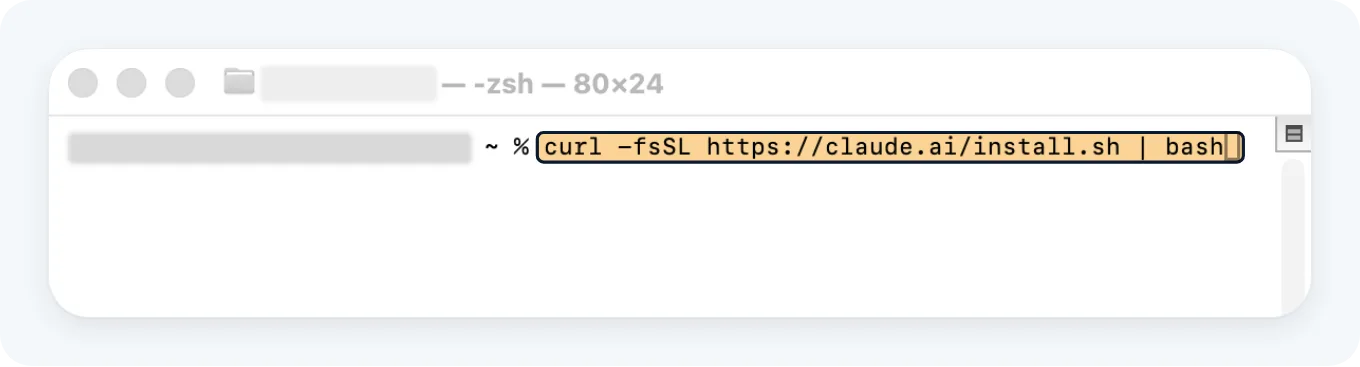
Nothing moves on screen while it downloads, so leave the window alone and wait. When it’s done, the last lines read Claude Code successfully installed!
Does it update itself?
Yes. This version keeps itself up to date in the background. New versions download while you work and take over the next time you start Claude Code.
Already use Homebrew?
Homebrew installs Mac apps and tools when you type a line into Terminal. If you don’t use it, skip this part: the one-line installer above is all you need.
If you do use it, this line installs Claude Code instead:
brew install --cask claude-codeThat version runs about a week behind the newest release, and it doesn’t update itself: you run brew upgrade claude-code along with your other Homebrew updates.
Two copies of Claude Code on one Mac can conflict, so pick one way and stay with it.
If you see an error
If you see an error, here or when you first type claude, copy it, paste it into the Claude desktop app from Part 1 and ask what it means and how to fix it. Anthropic’s troubleshooting page covers the common install errors too.
Log in and start your first session
Close Terminal and open it again, or open a new window, so it can find the new command. Closing and reopening is what I did before typing claude for the first time.
Claude Code works inside the folder you start it in, so give it a folder of its own for the first run.
- In Finder, make a new folder, for example on your Desktop, and put a copy of something in it to work on: a script draft, a video description, a page of notes.
- In Terminal, type
cdand a space, drag the folder from Finder onto the Terminal window, and press Enter. Dragging works for images, docs and PDFs too. - Type
claudeand hit Enter.
The first launch opens your browser on Claude’s sign-in page. Use the account you set up in Part 1. Back in Terminal you’ll see Login successful. Press Enter to carry on. If the browser doesn’t open on its own, press c to copy the sign-in link, then paste it into your browser.
Two more screens can show up on a first run. Claude Code asks whether you trust a folder the first time you start it there, and it remembers your answer for that folder. Your home folder is the exception: there the question comes back on every launch, one more reason to give Claude Code a folder of its own. And the first session that starts in Auto mode shows a one-time notice at the top, explained under permission modes below.
What’s on screen
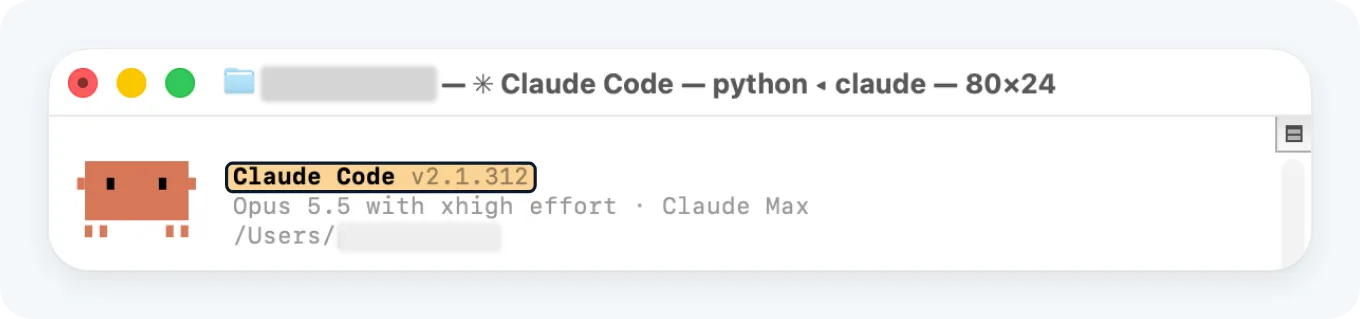
The top of the window shows Claude Code with its version number, the model it’s using and the folder it’s working in. That version number is your sign the install worked. Check the folder line before you ask for anything: it tells you where Claude will look.
A few basics before you type:
- Enter sends your message.
- Esc stops Claude mid-task.
- The up arrow brings back what you typed before.
exitcloses Claude Code.
The slash menu
Type / and a menu of commands opens. Keep typing letters to narrow it down. I think of it as the power menu. A few worth knowing on day one:
/helpshows help and the commands you have./modelswitches the model Claude uses./clearstarts a fresh conversation, and/resumebrings an earlier one back./rewindtakes the conversation, and the code Claude changed, back to an earlier point./usageshows your plan’s usage limits and how much of them you’ve used.
Your first task
You don’t need to know how to code. Anthropic’s guide for first-time terminal users says to describe what you want in plain English, and it suggests three kinds of first task: build something small, sort out files you already have, or just ask questions while you plan a project.
Here’s a starter written for a creator’s folder. Swap in your own file:
Read the script in this folder and write a shot list as a new file called shot-list.md: one line per shot, with the shot size and what's in frame. Don't change any other file.Permission modes in the terminal
A new terminal session starts in Auto mode. Claude works without stopping for routine questions, while a separate check reviews each action before it runs and blocks anything that goes beyond your request, such as downloading and running code with curl | bash or destroying files that existed before the session.
Shift + Tab changes the mode, and the status bar under the prompt shows the one you’re in. From Auto, presses go to Manual, then Accept edits, then Plan, and back around to Auto.
| Status bar | Mode | What Claude does |
|---|---|---|
⏵⏵ auto mode on |
Auto | Skips routine prompts while the background check screens each action |
⏸ manual mode on |
Manual | Starts read-only and asks before editing files or running commands. You approve once, or allow it from then on |
⏵⏵ accept edits on |
Accept edits | Creates and edits files in your folder without asking |
⏸ plan mode on |
Plan | Explores and proposes a plan without editing your files |
For your first few sessions, press Shift + Tab once to get to Manual. Edits and commands then wait for your answer.
A command prompt in Manual can also offer Yes, and switch to auto mode. That approves the command and leaves Manual for the rest of the session, so pick plain Yes while you’re learning.
Staying safe with Claude Code on Mac
Safety is really important to stress here, so here’s a short list of what to do and what not to do.
Do:
- Start in a project folder. Manual mode asks before Claude’s file tools reach outside the folder you started in.
- Read before you approve. Anthropic puts the job of reviewing proposed code and commands on you, so check what each prompt will actually run.
- Look twice at changes to files that matter, and report anything that seems off with
/feedback.
Don’t:
- Don’t treat Auto as a safety net. Anthropic’s own warning says it cuts prompts without guaranteeing safety, and it fits tasks where you trust the general direction.
- Don’t feed it text you don’t trust. Prompt injection hides instructions inside a page or file to take over what Claude does, and Anthropic advises against piping untrusted content straight in.
- Don’t count on the folder boundary for commands. An approved command can write anywhere your Mac account can.
- Don’t switch on Bypass permissions on your everyday Mac. It lets everything run without asking, and Anthropic limits it to isolated containers and virtual machines.
Which place for which job
Pick by the job in front of you:
| Place | Open it when | Pick another when |
|---|---|---|
| Chat | You want to talk something through: a question, a draft, an idea. It works on every plan | You want a whole job done and handed back, not talked through: that’s Cowork |
| Cowork | You want a whole job handed back as finished files: research, a document, a spreadsheet | The job is code, like fixing bugs or running tests. That’s Claude Code’s work, in the Code tab or Terminal |
| Code tab | You want Claude Code in a window, with buttons instead of commands: several sessions in a sidebar, and images or PDFs added with the + button | You want scripts that run on their own, or agent teams (one Claude handing tasks out to others): only Terminal has those |
| Terminal | You want everything Claude Code can do: every permission mode, scripts that run on their own, agent teams | You’d rather click than type: the Code tab is the same Claude Code in a window |
| VS Code extension | You already write code in VS Code and want Claude in a panel beside it, showing its changes in the editor | You don’t use VS Code: Terminal or the Code tab does the job without it |
For me, it’s absolutely Terminal now. It’s my go-to.
Next: the Claude desktop app
Part 3 of this series goes over the Claude desktop app itself.

About O-Side Media
A creative studio built on curiosity and imagination. We believe a great story only lands when you have the craft to deliver it exactly as intended. O-Side Media lives where music, technology, and content collide. We make cinematic short films. We chase the edge of AI filmmaking. And we break down the gear and tools creators actually use. Built on over twenty years of hands-on experience.
FAQ
Is Claude Code free on a Mac?
No. You sign in with a paid account, the same ones listed at the top of this guide, and Free isn’t one of them.
Do I need to know how to code to use Claude Code?
No. Anthropic’s guide for first-time terminal users says to describe what you want in plain English and let Claude write the code.