Not All USB-C Cables Are Equal – Here’s Why That Matters
Do you think any USB-C cable will do? Think again. This tiny cable might be silently killing your performance. In this guide, we’re exposing the hidden differences between USB-C cables — and how using the wrong one could completely slow down your workflow. Whether you’re plugging into a laptop, hard drive, or camera — not all USB-C cables are created equal. By the end of this post, you’ll know exactly which cable you need and which ones to avoid.
Why USB-C Cables Differ
Every cable may look the same on the outside, but inside the specs vary dramatically. Two identical-looking cables can transfer a 10GB file in either 10 minutes or 30 seconds depending on their speed rating.
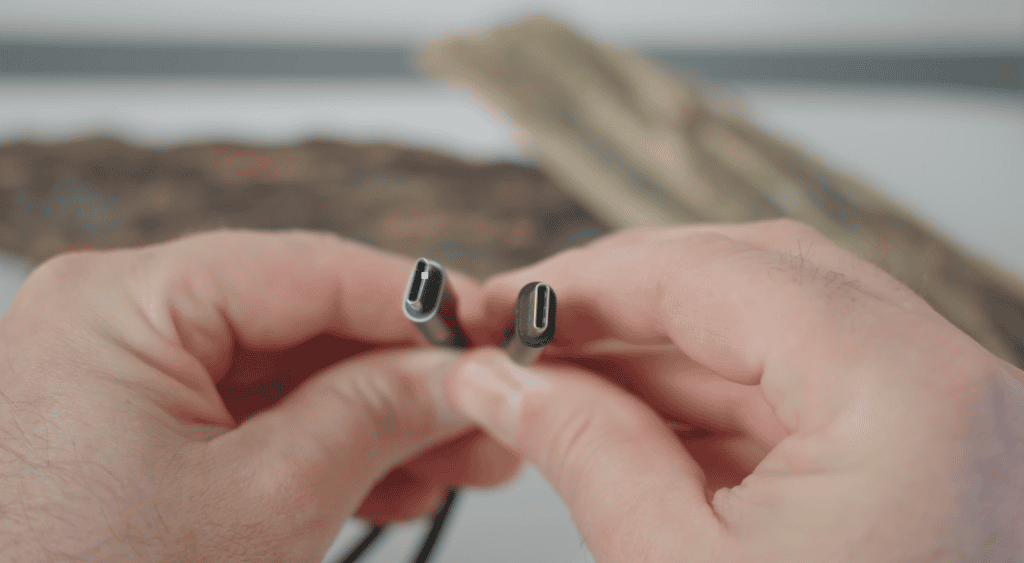
The Most Common USB Cable Types (Fastest to Slowest)
Here’s a breakdown of the most-used cable standards today:
1. USB 2.0
- Low bandwidth
- Best for keyboards, mice, game controllers
- Not recommended for data-heavy devices
2. USB 3.2 Gen 1
- Up to 5 Gbps
- Over 10× faster than USB 2.0
- Good general-purpose workflow
3. USB 3.2 Gen 2
- Ideal minimum for large files and high-res video workflows
4. USB 3.2 Gen 2×2
- 20 Gbps speeds
- Doubles the performance of Gen 2
- Great for fast SSDs
5. USB4
- Designed for pro-level data demands
- Perfect for RAW editing, 8K timelines, high-speed drives, external monitors
6. Thunderbolt 4
- The gold standard
- Full 40 Gbps bandwidth
- Supports multiple 4K displays + high-speed data + docking over a single port
If you want the fastest future-proof performance? Thunderbolt 4 or USB4 should be your go-to.
Power Delivery: The Most Confusing Part
Just because a cable charges fast doesn’t mean it transfers data fast. Charging labels do not tell the whole story.

Here’s how power ratings break down:
| Power Rating | Best Use Cases | Notes |
|---|---|---|
| 15W | Basic charging | Most cheap cables default to this |
| 30W | Fast-charging smartphones | Step up over the bare minimum |
| 60W | Everyday laptop + accessories | Common “sweet spot” |
| 100W | MacBook Pros, docks, full workstation power | Requires an e-marker chip |
| 240W | Top-tier new-generation charging | Cable must be thicker & labeled 240W |
Cheap Cables = Expensive Mistakes
A low-quality cable can cause:
- Slow file transfers
- Playback dropouts during editing
- Corrupted footage
- Disconnects with external SSDs or monitors
- Poor charging performance
If you’re investing in high-end gear — don’t cheap out on the cable keeping it alive.
How to Pick the Right Cable (Quick Guide)
| You need to… | Minimum Cable Rating |
|---|---|
| Charge phone/tablet | 30W USB-C |
| Charge laptop while working | 100W USB-C w/ e-marker |
| Edit off external SSD | USB 3.2 Gen 2 or faster |
| Work with 8K or RAW | USB4 / Thunderbolt 4 |
| Run a multi-monitor dock | Thunderbolt 4 |
Final Thoughts
USB-C is one of the most powerful connection standards ever — but only if you choose the right cable. The Golden Rule, Match the cable speed + power to your workflow.
If this breakdown helped you, make sure to bookmark it the next time you shop for cables — your performance depends on it!