Cinematic Rack Focus on iPhone — Blackmagic App Secrets
In-focus scenes look professional. Out-of-focus shots? Completely unusable. But with the right tools in the Blackmagic Camera App, you’ll never miss a critical moment again. In this guide, you’ll learn how to use the rack focus controls to pull focus between subjects with smooth, cinematic precision.
How to Set Automated Rack Focus Points
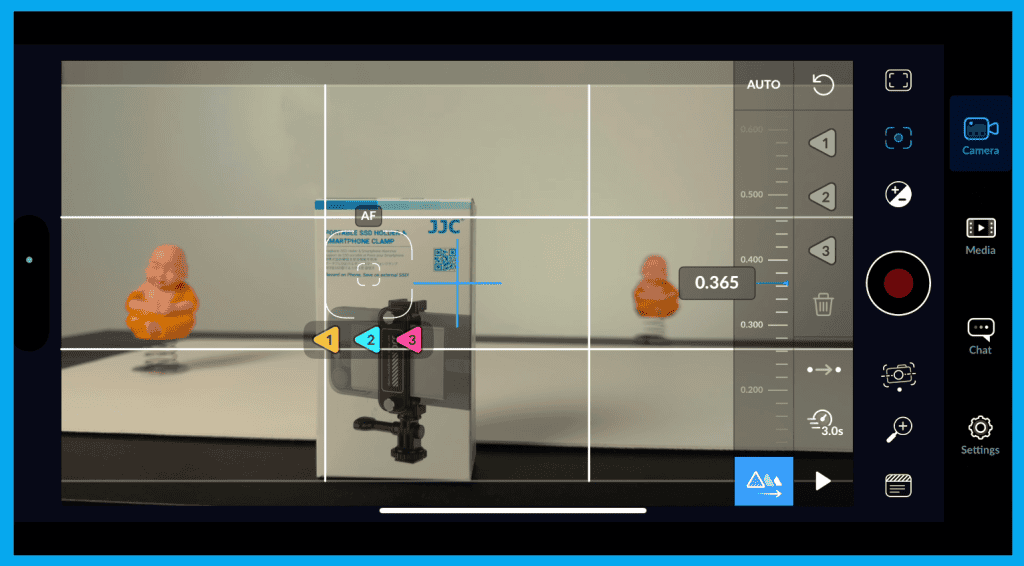
Here’s the step-by-step:
1️⃣ Tap your subject on screen → set your first autofocus point
2️⃣ Tap Button 1 to save that point
3️⃣ Move the focus to your second subject
4️⃣ Tap Button 2 to save the second focus location
5️⃣ (Optional) Add Button 3 for a third point in the scene
Press play → and watch the rack focus happen automatically (You can preview before recording too!)
Quick Tip: Make your selection quickly after tapping a subject — wait too long and the app cancels the save.
Control Your Focus Pull Speed
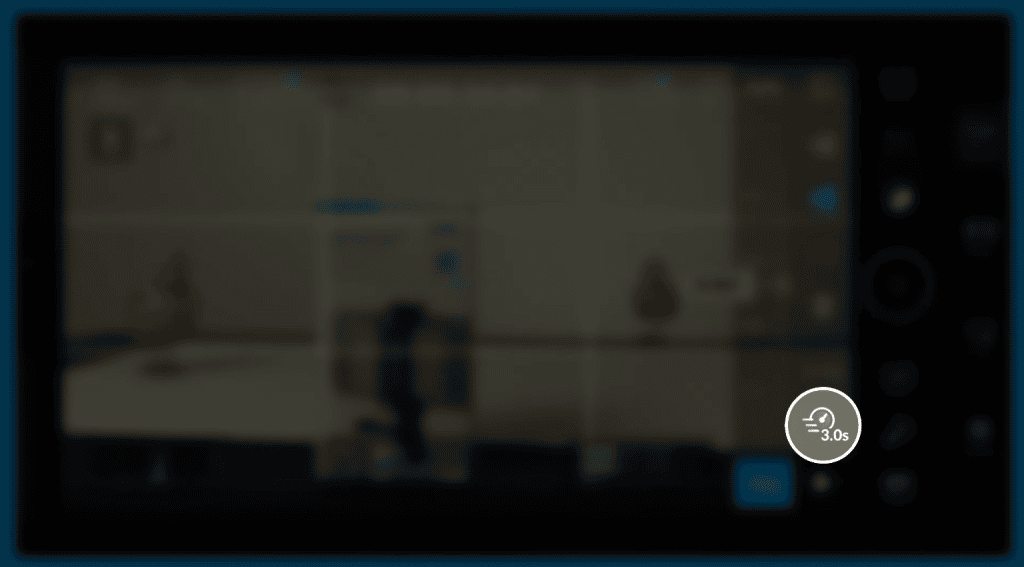
Tap the Time Toggle Icon to choose how fast the camera pulls focus:
Rack Focus on Loop Mode
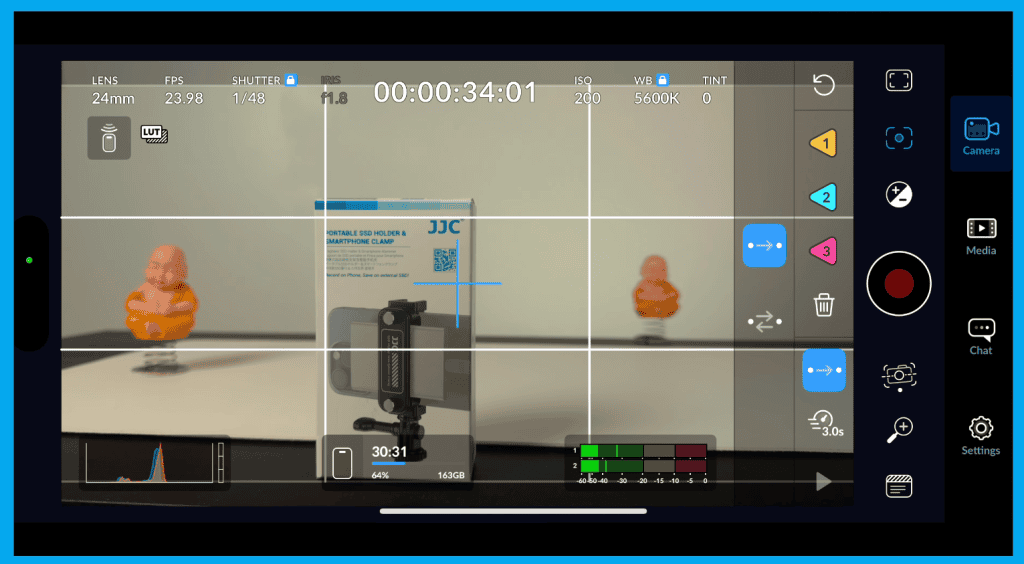
Two Focus Points
| Loop Style | Pattern |
|---|---|
| Option A | 1 ➜ 2 |
| Option B | 1 ➜ 2 ➜ 1 |
Three Focus Points
| Loop Style | Pattern |
|---|---|
| Option A | 1 ➜ 2 ➜ 3 |
| Option B | 1 ➜ 2 ➜ 3 ➜ 2 ➜ 1 |
Managing Your Focus Points
- 🗑️ Trash Icon → Clears one or all saved points
- ▶️ Play Button → Preview movements before & during recording
Pro Tips for Cinematic Rack Focus
- Use a telephoto lens when possible — stronger depth separation
- Add foreground elements for parallax movement
- Pair with controlled camera motion (slider, gimbal)
- Combine with peaking before setting focus points
- Keep your subject’s eyes in the green zone when using false color
These techniques help rack focus feel intentional, not accidental.
Final Thoughts
You’ve now mastered one of the most important visual storytelling tools — controlled focus transitions. Next up in the series:Recording Clean Audio in the Blackmagic Camera App.